1. User Guide: Exploring Literature with the biblioview Dashboard
This guide walks you through using the interactive biblioview Shiny dashboard to explore, enrich, and export literature collections from a Zotero Group Library.
It assumes that you received a pre-configured dashboard link.
1. Getting Started via App Link
When you open a pre-configured dashboard link (containing parameters for group, key, and folder), the app automatically authenticates and pre-selects your target collection. Please wait a little until retrieval of bibliographic entries from Zotero is finished.
🔒 Security Note on API Keys: The API key is passed directly in the URL query string. It is essentially a password, so do not share or publish pre-configured links publicly!
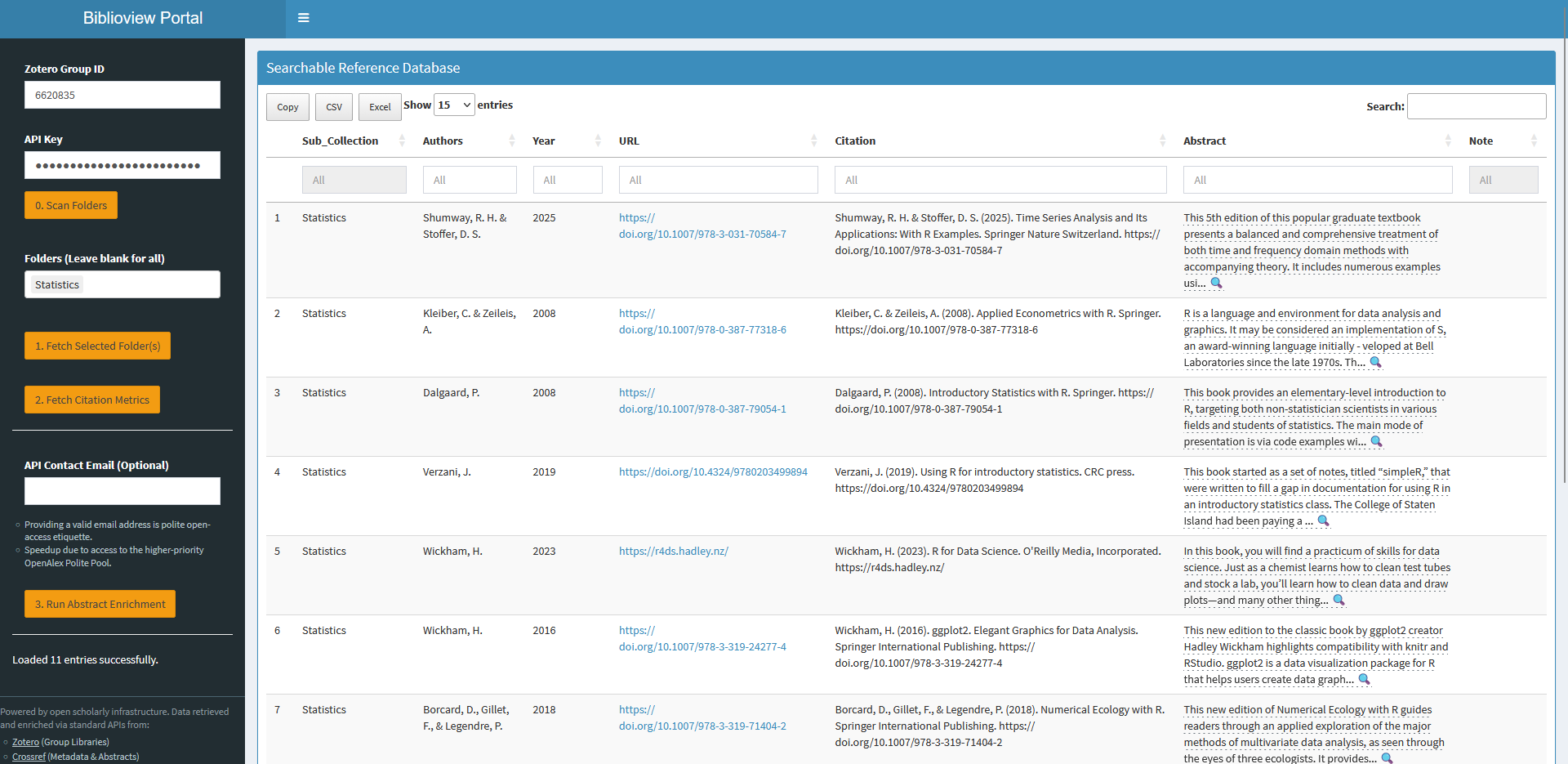
2. Exploring and Interacting with the Library
Once your library loads into the main table, you have several interactive options:
- Enable Full Page View: Click the Hamburger Menu (☰) to toggle the control panel on and off.
- Adjust Table Density: Use the entries selector at the top left to expand the number of displayed records per page (e.g., from 10 to 50 or all rows).
- Search, Sort and Filter: Filter across all fields instantly using the global search box, or click any column header (such as Year, Author, or Citations) to sort.
-
Previewing Abstracts & Notes:
- Hover: Move your mouse over truncated text cells marked with a magnifying glass (🔍) to read quick tooltips for long abstracts or notes.
- Enlarge & Export: Double-click an abstract or note cell to pop up a standalone preview window for easy reading or copying.
3. Enriching Metadata
Use the step-by-step pipeline controls above the table to fetch live external metadata:
- Citation Metrics: Click Fetch Citation Metrics to query the OpenAlex API in batch mode and pull in up-to-date citation counts. A value of -1 indicates that no citation count was found.
- Abstract Enrichment: Click Enrich Abstracts to run a search (checking Crossref, OpenAlex, and Europe PMC) to automatically fill in missing abstract text. Tip: Providing an email address accesses the API’s Polite Pool, which significantly speeds up retrieval and avoids rate limits.
ℹ️ Writing Back to Zotero: By default, dashboard access is read-only. Writing retrieved abstracts back to the underlying library database can be done with a separate R function of the {biblioview} package and requires an API key with write permissions configured in the Zotero Security settings.
4. Changing Collections & Exporting
- Switch Folders: Select a different sub-collection folder from the dropdown menu at any time. Click Fetch Library to pull the updated dataset into the viewer.
- Export Data: Use the export buttons above the table to download your current filtered or full view as a CSV or Excel spreadsheet.
5. Editing References and Viewing PDFs (Zotero Workflow)
Full library editing and direct PDF reading take place within the Zotero client. Register at [Zotero]{https://zotero.org} and send your account name to the admin of the repective group library.
- Edit, Add or Import Items: Add new references, correct bibliographic metadata, or attach PDF files using the Zotero Desktop App or Zotero Web Interface.
-
Best Practices for Metadata:
- DOIs & URLs: Ensure DOIs are included whenever available (DOIs take precedence over raw web URLs during metric lookups).
-
Custom Notes: Add or edit extra annotations by inserting a
Note:field in Zotero’s Extra field.
- Syncing Updates: Once changes are saved in Zotero, click Fetch Library in the biblioview dashboard after a brief sync delay to bring the updated references into your view.